Run labs
Toolbars and More menu
Use the lab **workspace bar** (Design / Operate / Visualize) without guessing where Classroom, Preview, or More live.

Goal
Use the lab workspace bar (Design / Operate / Visualize) without guessing where Classroom, Preview, or More live.

Why the workspace bar exists
The classic multi-row Focus chrome is replaced by one dense Lab workspace bar so the canvas stays large. The same topology stays under three modes; tools change with intent.
Mode switch (always on the bar)
| Mode | Job |
|---|---|
| Design | Place nodes, connect ports, ScriptPad, undo/redo, templates |
| Operate | Start / Stop / Wipe, consoles, capture, automation |
| Visualize | Traffic Lens, Validate, Protocol adjacency, Present, L2/L3 views |
Why modes: Editing while students watch, or starting nodes mid-draw, causes accidents. Modes lock intent.
GUI tutorial
Step 1 - Find the workspace bar
- Open any lab
- Look at the dense top bar: modes, Save, Zoom, Classroom, Preview, More
| What you see | Design / Operate / Visualize switch |
| Expected | Active mode is highlighted |
Step 2 - Open More
- Click More
- Note mode-specific items (Grid in Design, Start all in Operate, lenses in Visualize)
Step 3 - Jump to feature tutorials
| Need | Go to |
|---|---|
| Console dock | Operate and consoles |
| Capture | Packet capture |
| Traffic / bandwidth | Traffic Lens |
| Link delay / loss | Link inspector and impairment |
| Palette / inspector | Design mode |
Primary actions on the bar
| Control | Why |
|---|---|
| Save | Sync topology from the appliance |
| Undo / Redo | Fix mis-clicks (Design) |
| Zoom | In / out / reset percentage |
| Search | Find nodes, links, text on the canvas |
| Labels | Toggle interface / mid-link labels |
| Assist | LLM dock (needs OpenRouter + Assist entitlement) |
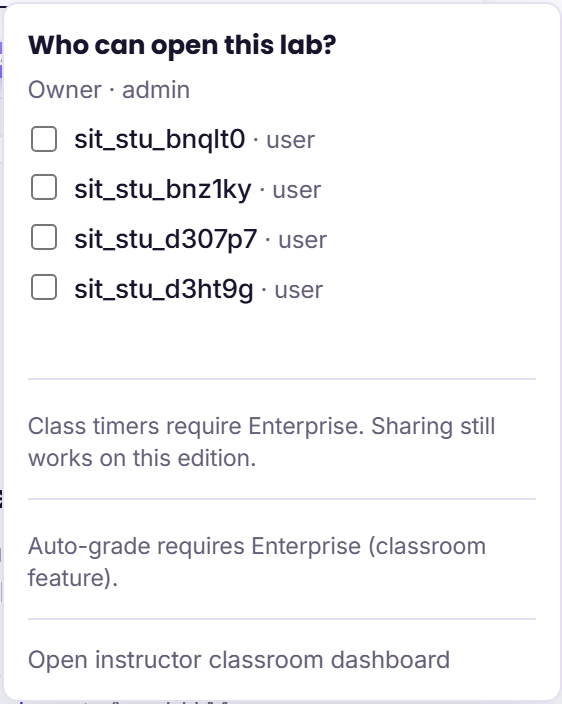
| Classroom | Share students + class timer (Enterprise for timers) |
| Preview | Fullscreen Design workspace - tools stay enabled |
| More | Grid, snap, lock, link path, Guide, ScriptPad, Start/Stop all, lenses |
More menu (highlights)
| Item | Mode context | Why beginners care |
|---|---|---|
| Overview / Validate / Protocol adjacency / Present | Visualize | Switch Visualize lenses without leaving the canvas |
| Grid / Snap | Design | Align nodes neatly |
| Lock positions | Design | Stop accidental drags during a demo |
| Link path | Design | Curve / bezier / orthogonal / straight |
| Guide / ScriptPad / Console | Any | Lesson pane, configs, terminal dock - Operate and consoles |
| Capture / Captures | Operate | Start PCAP jobs - Packet capture |
| Traffic / Bandwidth | Visualize | Utilization paint - Traffic Lens |
| Start all / Stop all | Operate | Lifecycle without hunting context menus |
| Export lab pack | Any | Share *-vex-nx-lab.zip |
Link quality (delay / loss): click a link -> Link inspector and impairment.
Present vs Preview (do not confuse)
| Control | What it does |
|---|---|
| Preview (bar button) | Immersive Design - fullscreen, edit tools still work |
| More -> Present (Visualize) | Clean Present lens - demo HUD, edit chrome hidden |
Full matrix: Visualize, Present, and Preview.
Classroom (on the bar)
- Click Classroom
- Share students (checkboxes or comma-separated usernames)
- Pick duration + Then: Stop nodes or Wipe nodes
- Start class - countdown chip appears; Cancel timer to clear
Details: Sharing labs and class timers.
Expected result
- Mode buttons highlight the active mode
- Classroom and Preview are visible without hunting Focus chrome
- More menu lists Start/Stop all and Visualize lenses
If it fails
- No Classroom button -> you are not owner/admin on that lab, or the lab is in Present lens
- Toolbar looks empty -> confirm you are inside a lab (
Labs -> open a lab), not only on the Labs list - Old docs mention Design / Operate / Observe / Validate / Present as five peer modes - that model is retired; use three modes + Visualize lenses
Related
- Menus and toolbars (product-wide chrome)
- Traffic Lens
- Instructor dashboard