Administration
Users, roles, and quotas
Create accounts and keep class capacity inside licence and host limits.
Goal
Create accounts and keep class capacity inside licence and host limits.
Roles (source)
| Role | Typical use |
|---|---|
| admin | Users, licence, Assist LLM, management network, wipe/maintenance |
| editor | Build and operate labs; import images; MCP tools when licensed |
| user | Use shared / owned labs within quotas |
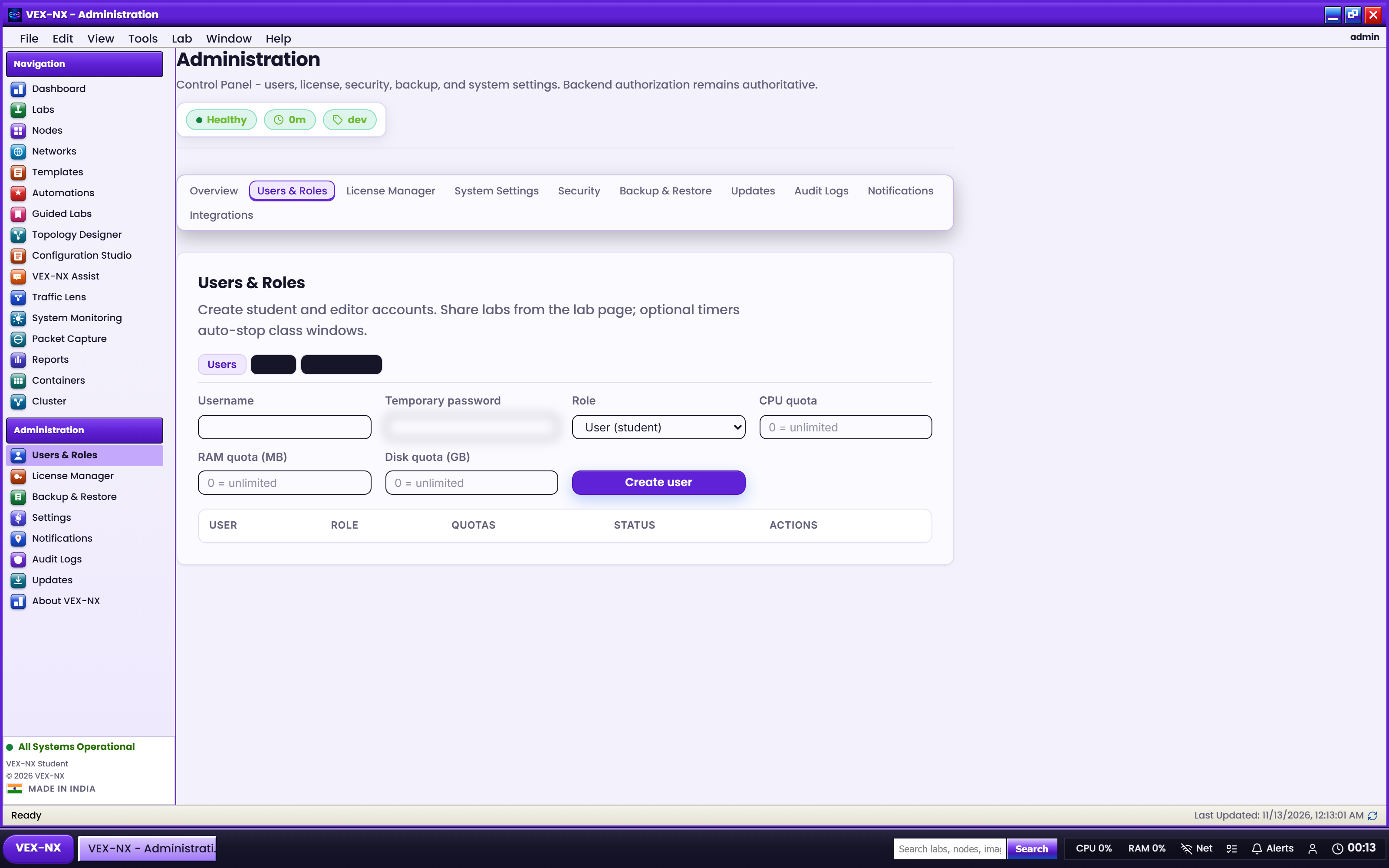
Recipe: add a user
- Administration -> Users (admins only)
- Enter username and initial password
- Choose role:
admin,editor, oruser - Optional: set CPU quota and RAM quota (MB) (
0= unlimited) - Create the user
- Ask them to change password on first login when prompted
Licence max users is enforced on create (Licence).
Recipe: edit quotas later
- Find the user in the Users table
- Edit quotas
- Set CPU and RAM MB (
0= unlimited) - Confirm
Quotas apply to nodes the user owns when starting. Use them so one student cannot exhaust the classroom host.
Recipe: change role or disable
Use the role dropdown on the user row. Disable or delete unused accounts when seats are tight.
Expected result
- Students can sign in to the web UI
- Clear errors when licence seats or CPU/RAM quotas are exceeded
If it fails
| Symptom | Fix |
|---|---|
| Cannot open Users | You are not admin |
| Cannot create user | Seat count exhausted - disable unused accounts or upgrade edition |
| Start blocked | Check per-user CPU/RAM quotas and concurrent lab limits |
Related
- Licence editions and activation
- Classroom for instructors