Build labs
Migrate Lab
Upload a ZIP that contains a **`.unl`** topology file (and optional startup configs) from another lab platform, then create a VEX-NX lab.
Goal
Upload a ZIP that contains a .unl topology file (and optional startup configs) from another lab platform, then create a VEX-NX lab.
Why Migrate Lab exists
Many people already built labs elsewhere. Migrate saves redrawing every link. It is the bridge from "old tool export" to "VEX-NX lab".
Why disks are separate: UNL ZIPs usually describe what is connected, not multi-GB vendor images. You import images once under Images -> Import, then map them during the Migrate preview.
Wrong button?
| Your ZIP | Use instead |
|---|---|
Contains .unl from another emulator | Migrate Lab (this page) |
Named like something-vex-nx-lab.zip from VEX-NX Export | Import Lab |
| Only running-config text | Generate Lab |
GUI tutorial
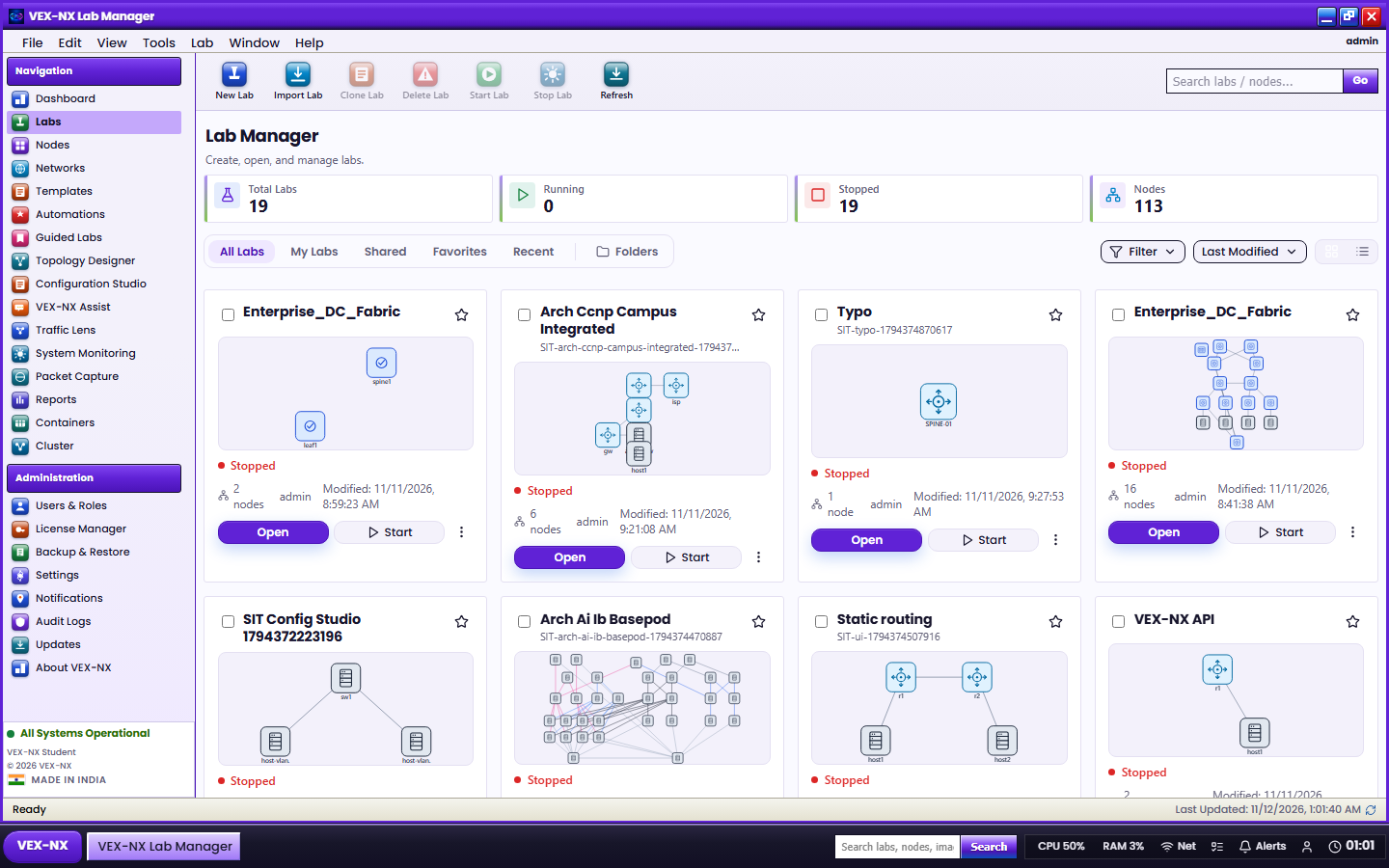
Step 1 - Open Migrate Lab
- Labs -> Migrate Lab
- Confirm the upload / preview UI
| What you see | Migrate Lab dialog |
| Expected | ZIP picker and Preview import |
Step 2 - Preview and map templates
- Choose the
.unlbundle ZIP - Click Preview import
- Fix Checks (errors block create)
- Map each node to a template and image
- Create lab then open Design mode
Prepare your bundle
- Save or export your lab as a
.unltopology file - Optional: add startups under
configs/(example:configs/R1.txt) - Import appliance disks via Images -> Import (the ZIP does not include disk images)
- Zip the files and keep the ZIP ready
Recipe: five-router UNL study lab
- Labs -> Migrate Lab
- Lab name:
ccnp-ospf-study - Choose the bundle ZIP
- Optional: enable Remap interface names in startup configs to match VEX-NX templates
- Preview import
- Read Checks - errors block create; warnings are advisory
- For each node: pick template and image (or "No image - pick later")
- Review links -> Create lab
Expected result
- Same node names and links as the UNL (as far as the importer could map them)
- Configs attached when remap worked
- Lab opens in Design for final cleanup
If it fails
- Errors in Checks -> fix template/image choices or missing mappings, then preview again
- Start fails later with missing disk -> finish Images Import and bind Library images
- Preview rejects the ZIP -> confirm a
.unlis inside; otherwise try Import Lab or Generate Lab
Related
- Import images
- Bulk folder import
- Design mode