Observe and troubleshoot
Link inspector and impairment
Inspect any link, then add delay, jitter, or loss for demos and failure drills, without rebuilding the topology.
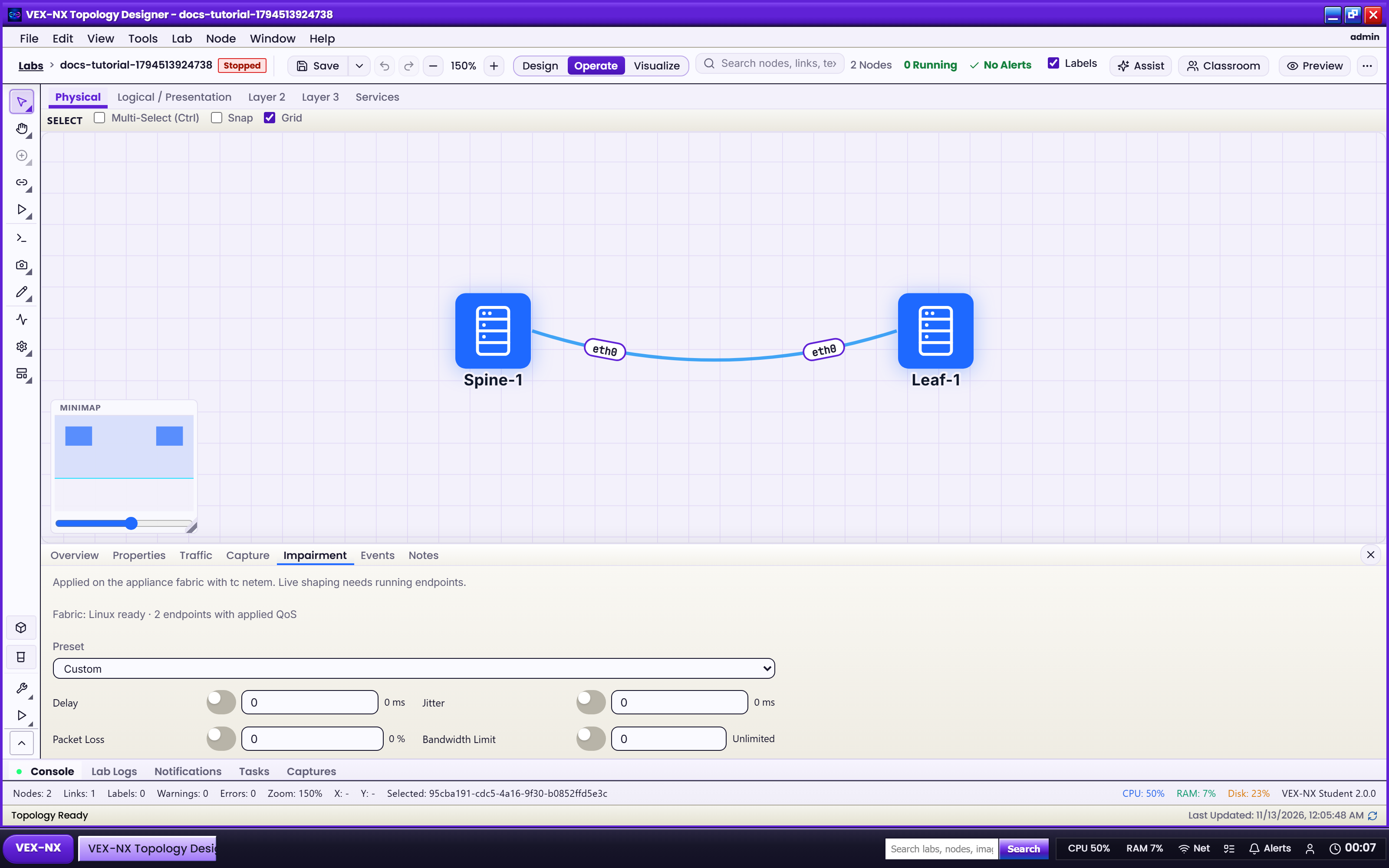
Nodes can be up while the path between them is bad. The link dock lets you inspect a link and inject delay, jitter, or loss on it, then clear it again.
Open the link dock
Click a link between two nodes in Design or Operate. The Link dock opens with four tabs.
| Tab | Use it to |
|---|---|
| Properties | Confirm the endpoints and interface names; adjust the label or style in Design |
| Traffic | See per-link rates, alongside Traffic Lens |
| Capture | Start, stop, and download a capture for this link |
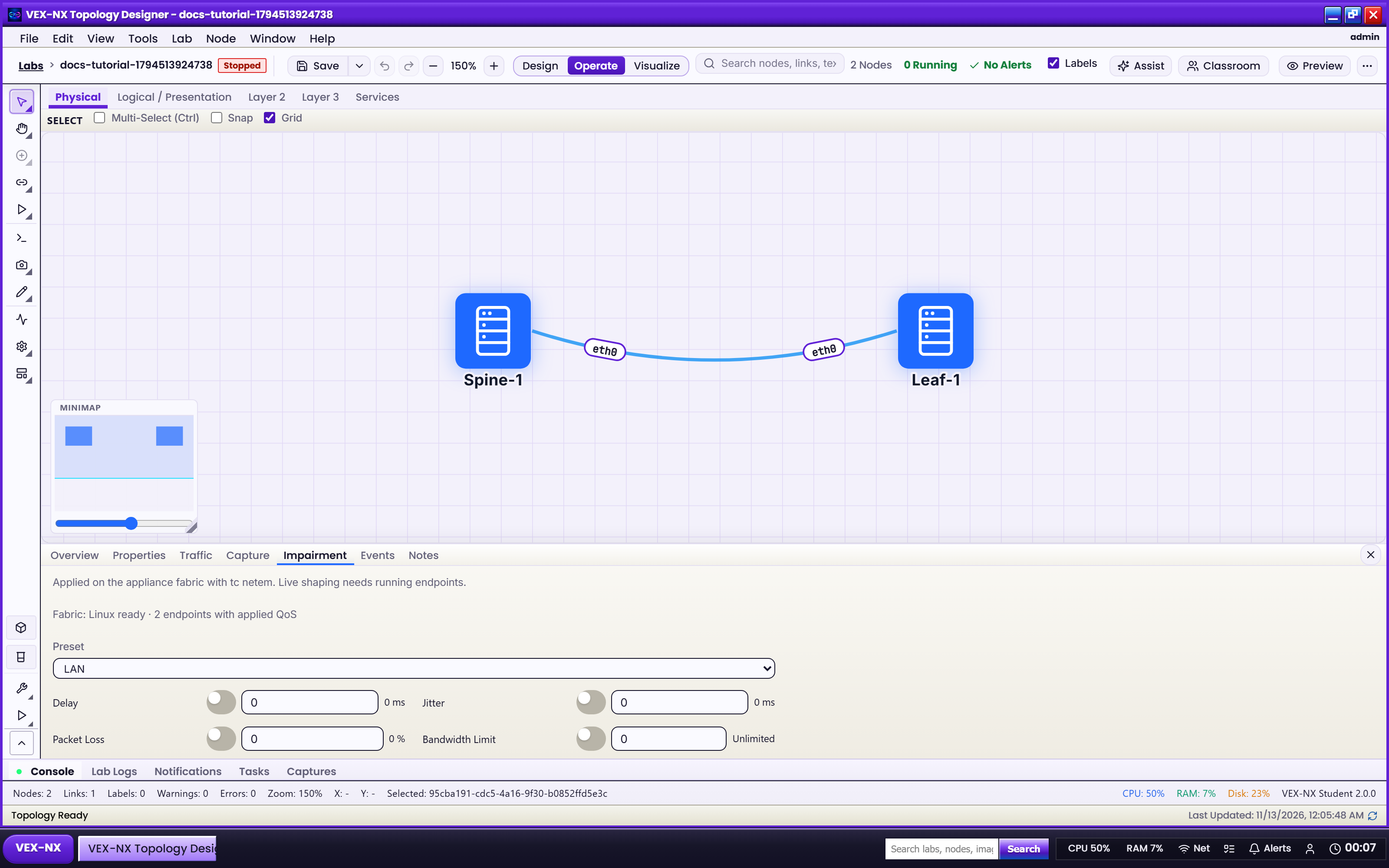
| Impairment | Apply a preset, or set delay, jitter, and loss |
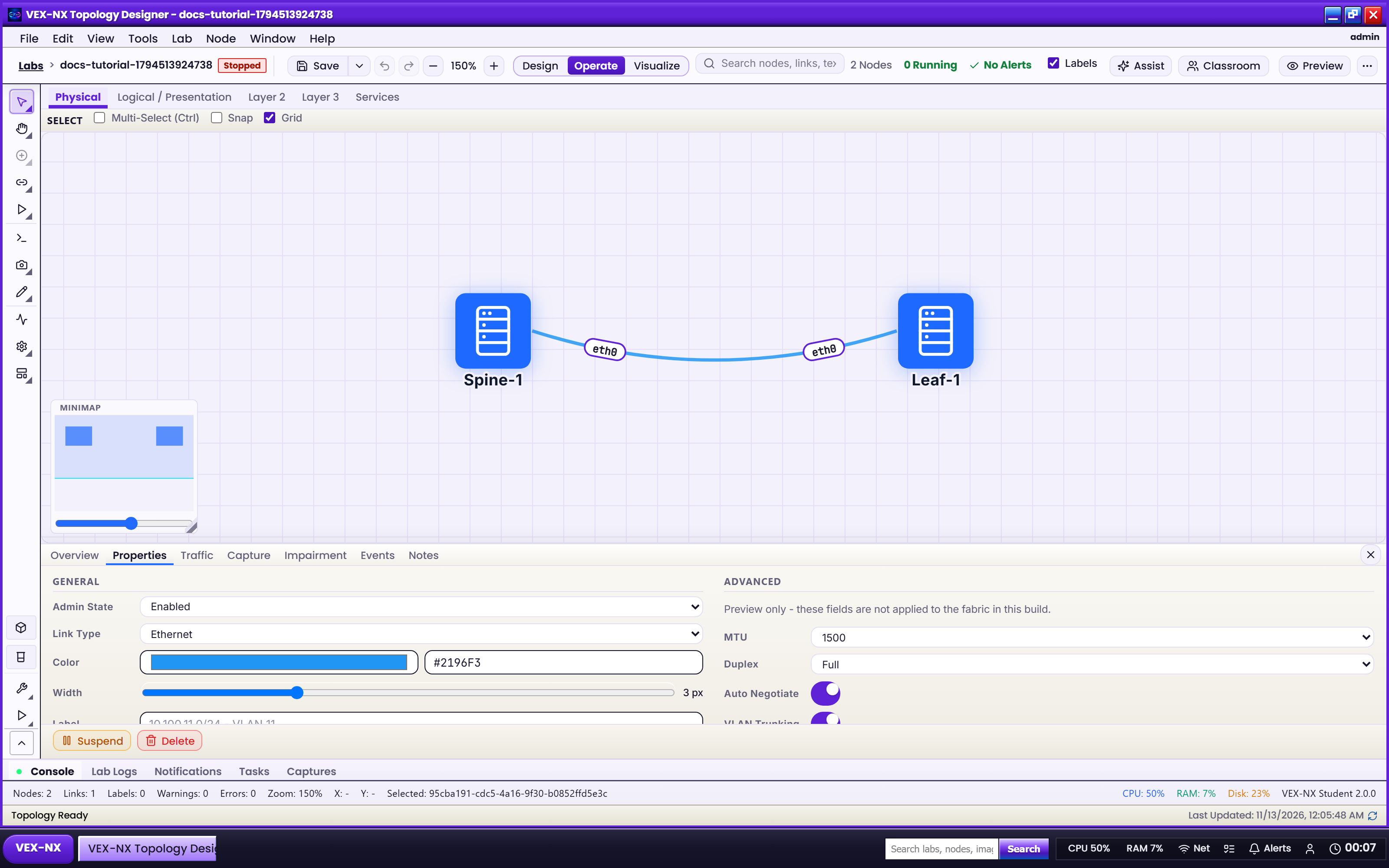
Impair a link
- Select the link and open Impairment (sometimes labelled Link quality).
- Pick a preset, or set Delay (ms), Jitter, and Loss (%).
- Click Apply. A toast or badge confirms it.
- See the effect. Keep the nodes running and ping across the link from a console. Round-trip time and loss should reflect your settings.
- Clear it. Reset, or set delay and loss to 0, click Apply, and confirm pings return to normal.
Tip
A good drill: impair one spine uplink in a leaf-spine fabric, watch Traffic Lens and routing react, capture the evidence on the same link, then clear it.
If it fails
| Symptom | Fix |
|---|---|
| No dock when you click | Zoom in and click the edge line itself, not just its label. |
| Impairment controls missing | An edition or feature gate; see Features and editions. |
| Nothing measurable changes | Confirm both nodes are running, wait a few seconds, ping again. |
| Inspector hidden during Traffic Lens | Exit Traffic, or use the Traffic dock first. |