Get started
Install from USB
Install VEX-NX on a physical server with native KVM for heavy nested labs.
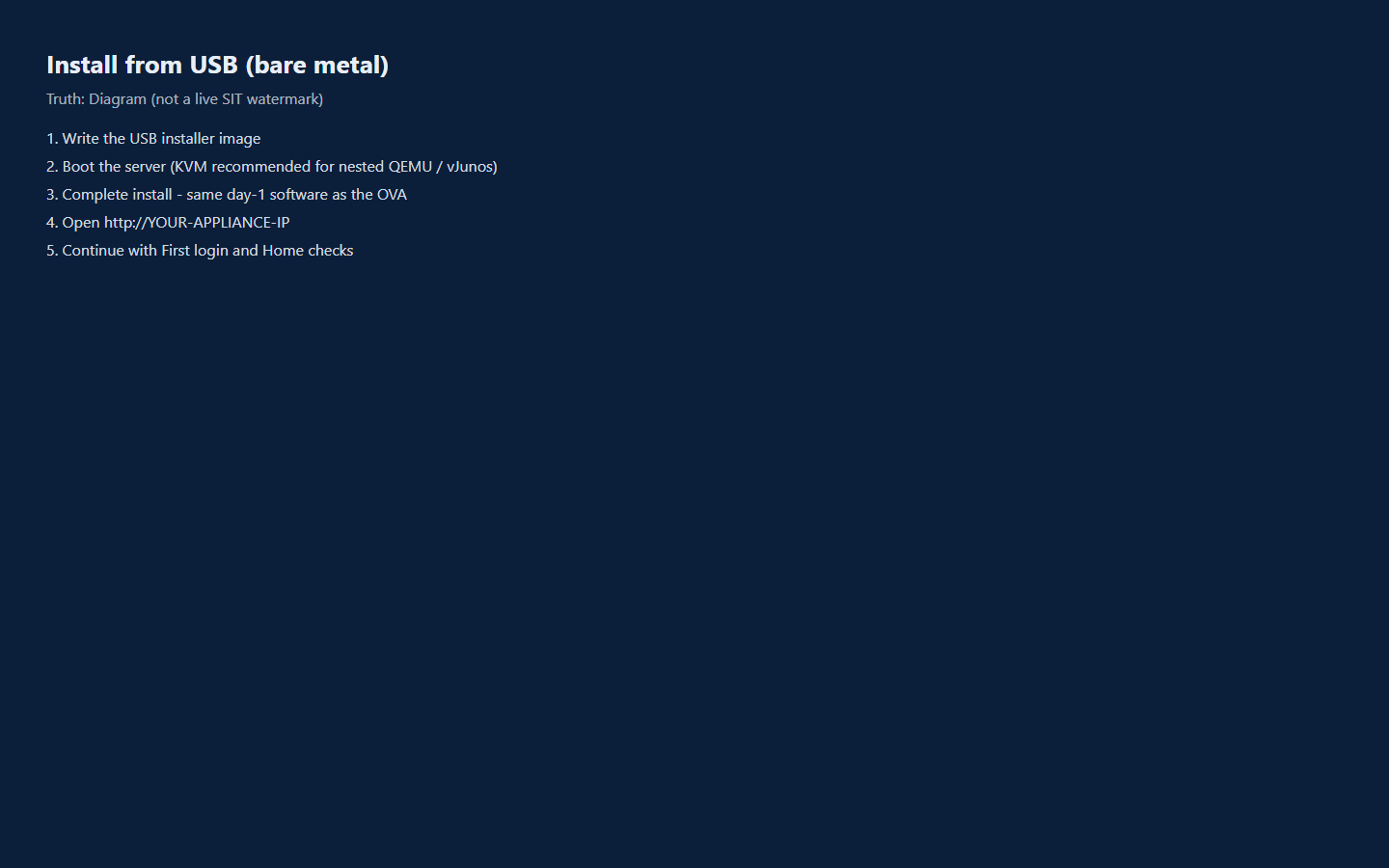
The bare-metal installer gives you the same software as the OVA, running directly on hardware with native KVM. It is the best choice for heavy guests such as vJunos or nested ESXi.
What you need
| Item | Detail |
|---|---|
| Installer | vex-nx-<version>-baremetal-amd64.iso (verify its SHA-256 first) |
| USB stick | 8 GB or larger. It will be wiped |
| CPU | VT-x or AMD-V enabled in BIOS/UEFI |
| Disk | The target disk is erased. 80 GB or more recommended |
| Console | Local screen, or IPMI / iDRAC / iLO |
| Network | Decide DHCP or static (IP, prefix, gateway, and DNS) |
Install on a physical server
- Write the USB. Use Rufus in DD Image mode, or balenaEtcher. Avoid Rufus ISO mode.
- Prepare firmware. Enable VT-x/AMD-V (and VT-d/AMD-Vi if offered), prefer UEFI boot, and turn Secure Boot off if it blocks the installer.
- Boot the installer. Choose VEX-NX Bare Metal Installer at GRUB and wait for the graphical installer.
- Follow the installer. Set location and keyboard, choose the disk to erase (double-check it), create the local account, and set the management NIC to DHCP or static with DNS.
- Reboot from disk. Remove the USB when prompted.
- Finish first boot. At the console menu choose 1 for DHCP or 2 for static, note the management IP, and browse to
http://<management-ip>/.
Install the ISO inside VMware
Use this only when you deliberately want the ISO in a VM; the OVA is simpler on VMware.
Caution
Don't use VMware Easy Install. It takes over the guest and leaves a black screen with a blinking cursor.
- Create the VM with "I will install the operating system later". Guest type Linux / Ubuntu 64-bit, disk 80 GB or more.
- Set the hardware. Attach the ISO with Connect at power on, set firmware to UEFI, give it 4 GB+ RAM and 2+ CPUs, enable VT-x/EPT, and set video memory to 16 MB or more.
- Power on. You must see the VEX-NX GRUB menu. Then follow the physical-server steps from step 4.
If it fails
| Symptom | Fix |
|---|---|
| USB won't boot | Use the UEFI boot entry, try Secure Boot off, re-write with Rufus DD mode. |
| Black screen in VMware | Easy Install was used. Recreate the VM as above. |
| Keyboard or mouse dead in the installer | Raise video memory to 16 MB+, enable the USB tablet, click into the console. |
| GRUB never appears | Wrong firmware (use UEFI), wrong ISO, or CD not connected. |
| Installer can't find a disk | Check the SATA/NVMe controller in BIOS. |
qemu-img not found on Start | The media is too old. Reinstall from a current ISO. |
| No KVM | Confirm VT-x in BIOS; check ls -l /dev/kvm. |
Next: First login.