Build labs
Generate Lab from configs
Paste one or more running configs and get a new lab you can boot, with devices placed and links inferred.
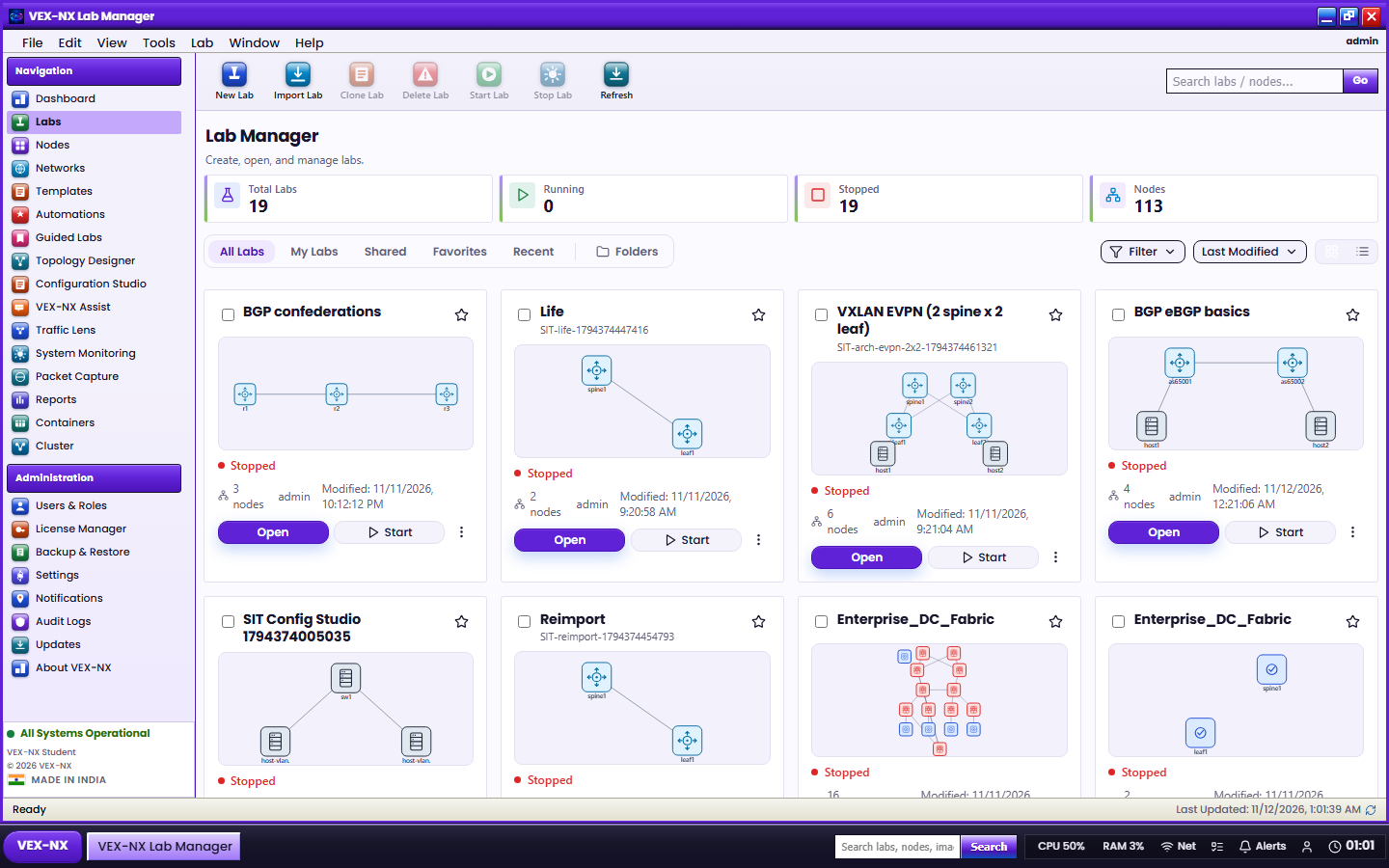
Real networks already have configs. Retyping them onto a blank canvas is slow and error-prone. Generate Lab turns pasted show run output into a new lab, so you can practise on a safe copy, rebuild a design from emailed configs, or go from "configs only" to "a topology I can boot".
Important
Generate Lab always creates a new lab. To push config onto a node that already exists, open that lab and use More → Apply running-config.
Create a lab from configs
- Open Labs → Generate Lab. The dialog is titled Create lab from running-config.
- Name the lab, for example
ospf-from-prod-snippet. - Choose a fidelity mode: Remap (default), Map, or Redesign. See the table below.
- Keep "Infer links from shared /30–/24 subnets" on so shared subnets become links.
- Paste the configs, separated by a line of
----, then click Preview devices. - Review each device. Edit the name and pick a template, such as
cisco-iosv,iosvl2,arista-veos,juniper-vsrx,frrouting, oralpine-docker. - Review inferred links and untick any you don't want.
- Click Create lab. Design opens with the result.
hostname R1
!
interface GigabitEthernet0/0
 ip address 10.0.0.1 255.255.255.252
!
----
hostname R2
!
interface GigabitEthernet0/0
 ip address 10.0.0.2 255.255.255.252
!Fidelity modes
| Mode | What it does | Use it when |
|---|---|---|
| Remap | Renames interfaces to match the lab template and keeps the config. Boot and image lines are removed so the node boots from your Library image. | You have the matching vendor image. Best for beginners. |
| Map (1:1) | Keeps source interface names where the template family allows. Same boot-line clean-up. | Names already match the template. |
| Redesign | Moves devices to FOSS stand-ins (frrouting, alpine-docker) with a mechanical FRR startup. With Assist configured, Assist translates each device fully; weak output is rejected and the mechanical version kept. | You don't have vendor images yet. |
Warning
If the paste relies on VXLAN/EVPN, NVE, or heavy layer-2 features, Redesign shows a WARNING and recommends Remap or Map with a matching QEMU image.
Paste format
- Separate devices with a line of
----or====. - Optionally add a header such as
### R1or! device: R1. - Otherwise
hostname(or Junossystem host-name) is detected automatically.
Generate Lab reads IOS, NX-OS, EOS, Junos, FRR, and similar dialects. It skips empty interface stubs on large dumps, and keeps overlay ports such as NVE, loopbacks, and SVIs in the startup text rather than drawing them as links.
Images and boot safety
- Nodes boot from the Library image bound to them, never from
bootflash:paths in the paste. - After start, VEX-NX makes a best-effort check that the intended hostname came up.
- Without Assist, mechanical detection still runs and notes that Assist analysis was skipped.
Common mistakes
| Mistake | Fix |
|---|---|
No ---- between devices | Everything becomes one device. Add separators or headers. |
| Cisco template, no IOS image | Import the image under Images → Import and bind it to the node. |
| Expecting disks inside the paste | Configs only; images are separate. |
| Updating an existing node | Use More → Apply running-config in that lab instead. |
Related: Recreate production networks · Import images