Build labs
Guided Labs
Launch a ready-made lab with its topology, day-0 configs, and a lesson beside the canvas.
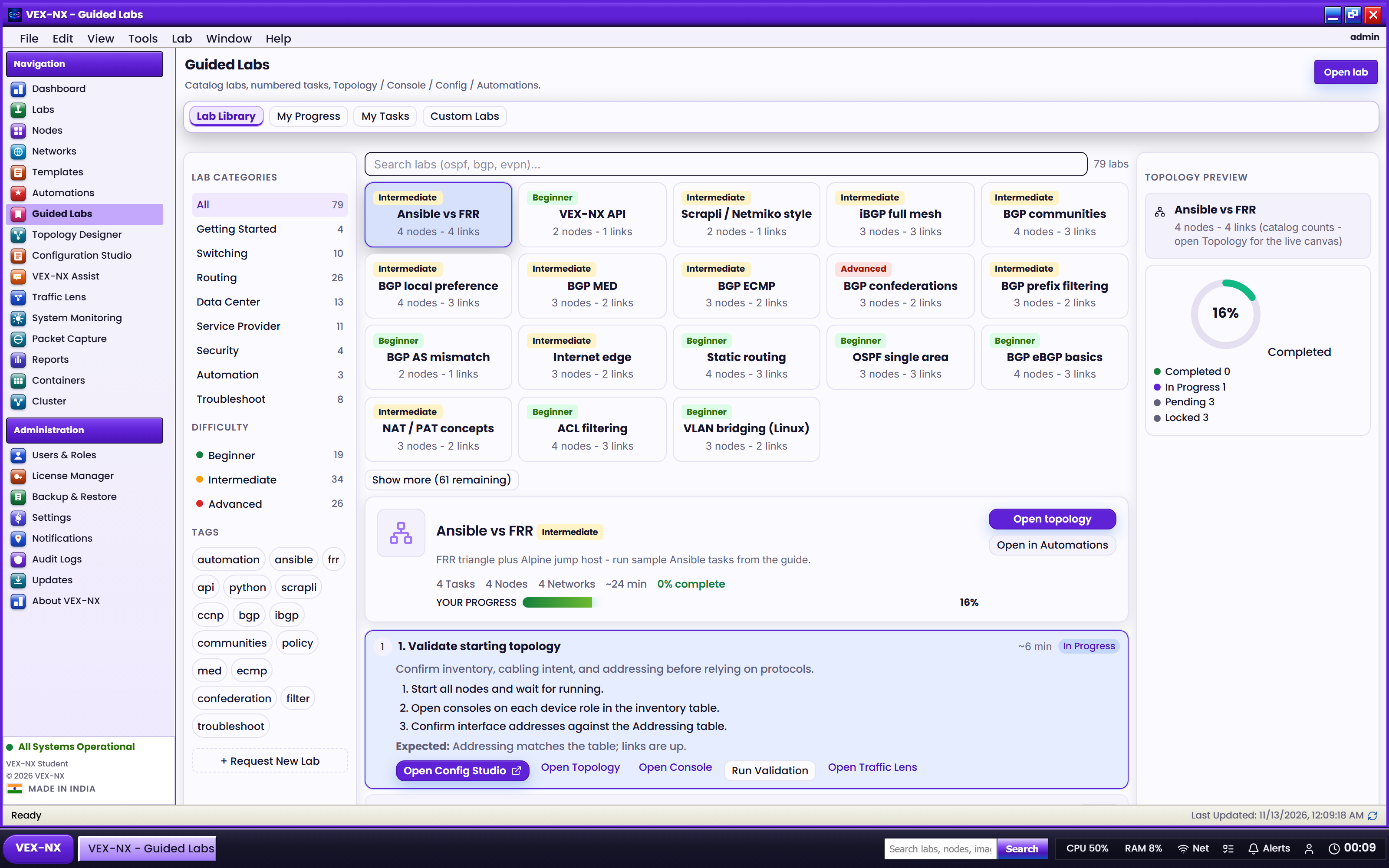
New users rarely know how many nodes to place or which protocols to configure first. Guided Labs give you a known-good topology, day-0 configs so Start is useful immediately, and a Guide beside the canvas.
Tip
Start here on day one. Use blank, Generate, Migrate, or Import when you already have a diagram or files.
Launch a Guided Lab
- Open the catalogue. Sidebar → Guided Labs, or Labs → Guided Labs. Click Show (N) if it is collapsed.
- Filter. Pick a Domain and a Rank; Bronze is the place to begin.
- Preview. Click Guide to read the lesson before you create anything.
- Create. Click Use this lab. The lab opens with the Guide beside the topology.
- Start. Switch to Operate → Start all, open Terminal, and follow the Guide. On FRR nodes, run
vtysh.
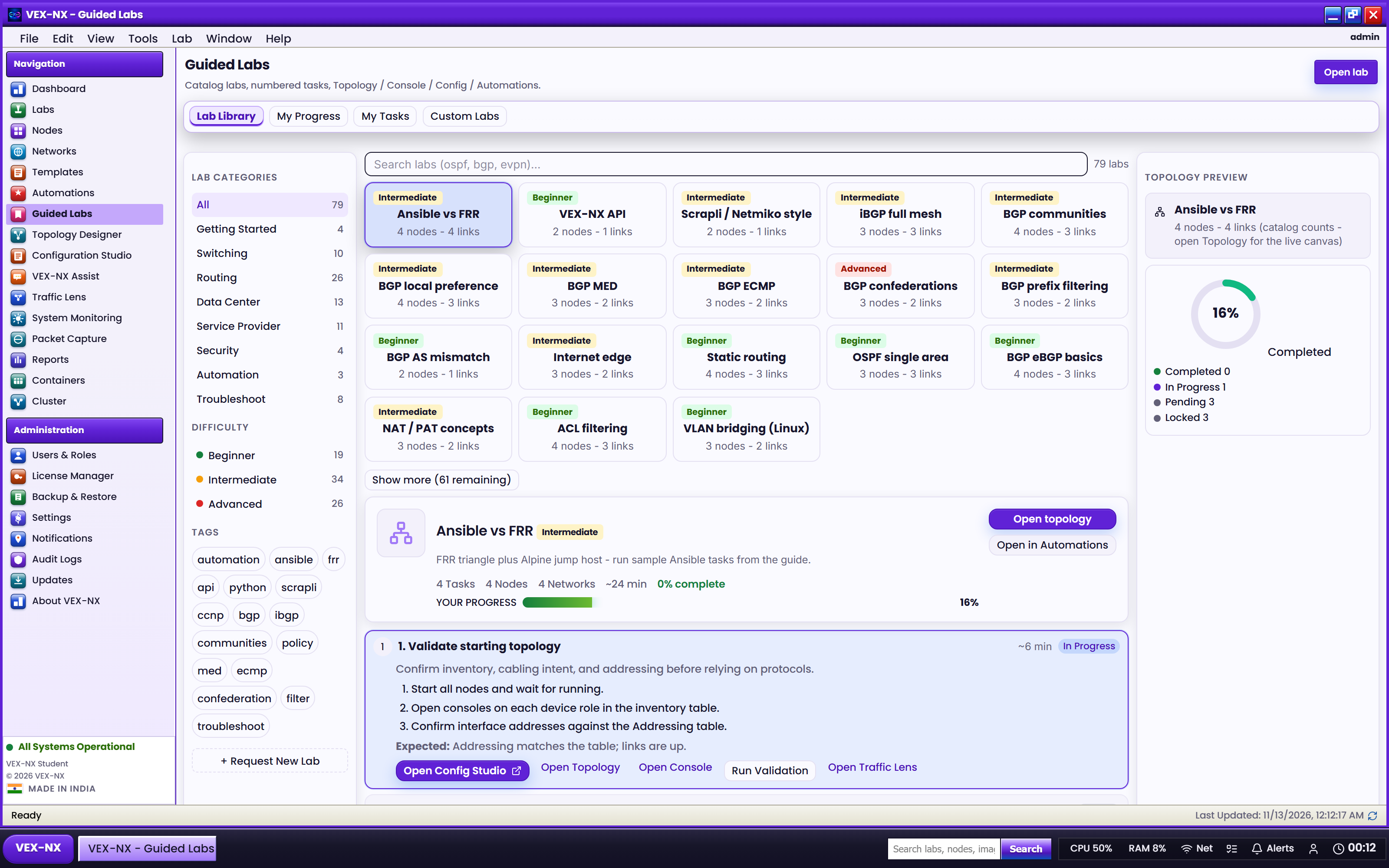
Filters
| Filter | Options |
|---|---|
| Search | Name, description, or tags |
| Domain | Switching, Routing, Datacenter, Security, Service provider, Automation, Troubleshoot, Foundations |
| Rank | Bronze, Silver, Gold |
Card actions
| Action | What it does |
|---|---|
| Use this lab | Creates the lab from the preset and opens it with the Guide |
| Guide | Previews the lesson before you create the lab |
| Restore factory | Shown only on Customized cards; removes this appliance's override |
Customize a starter (instructors)
Change the topology, configs, or Guide on a launched lab, then publish it as the default for that starter on this appliance. The card shows Customized. Restore factory brings back the original. See Classroom for instructors.
Images
Guided Labs mostly use the included quay.io/frrouting/frr:10.2.1 and alpine:3.20. If Start fails on a pull, run sudo vexnx-seed-docker, or ask an admin to use Operate → More → Seed Docker images.
Note
The AI InfiniBand fabric lab is withheld from the catalogue in this build: it needs more memory and boot time than the current appliance class completes reliably. Labs already created from it keep working.
If it fails
- Docker off on Home: wait for the install phase to finish, or fix Docker.
- Image pull or DNS errors: set DNS under Infrastructure → Management network, then seed.
- No cards: clear the search and set All domains and All ranks.