Images
Import images
Add a vendor disk to the Library and bind it to a template so QEMU nodes can Start.
Goal
Add a vendor disk to the Library and bind it to a template so QEMU nodes can Start.
Why Import exists
Catalog templates are blueprints. Without a disk file in Library, commercial appliances have nothing to boot. Import is how your licensed files become usable on this appliance.
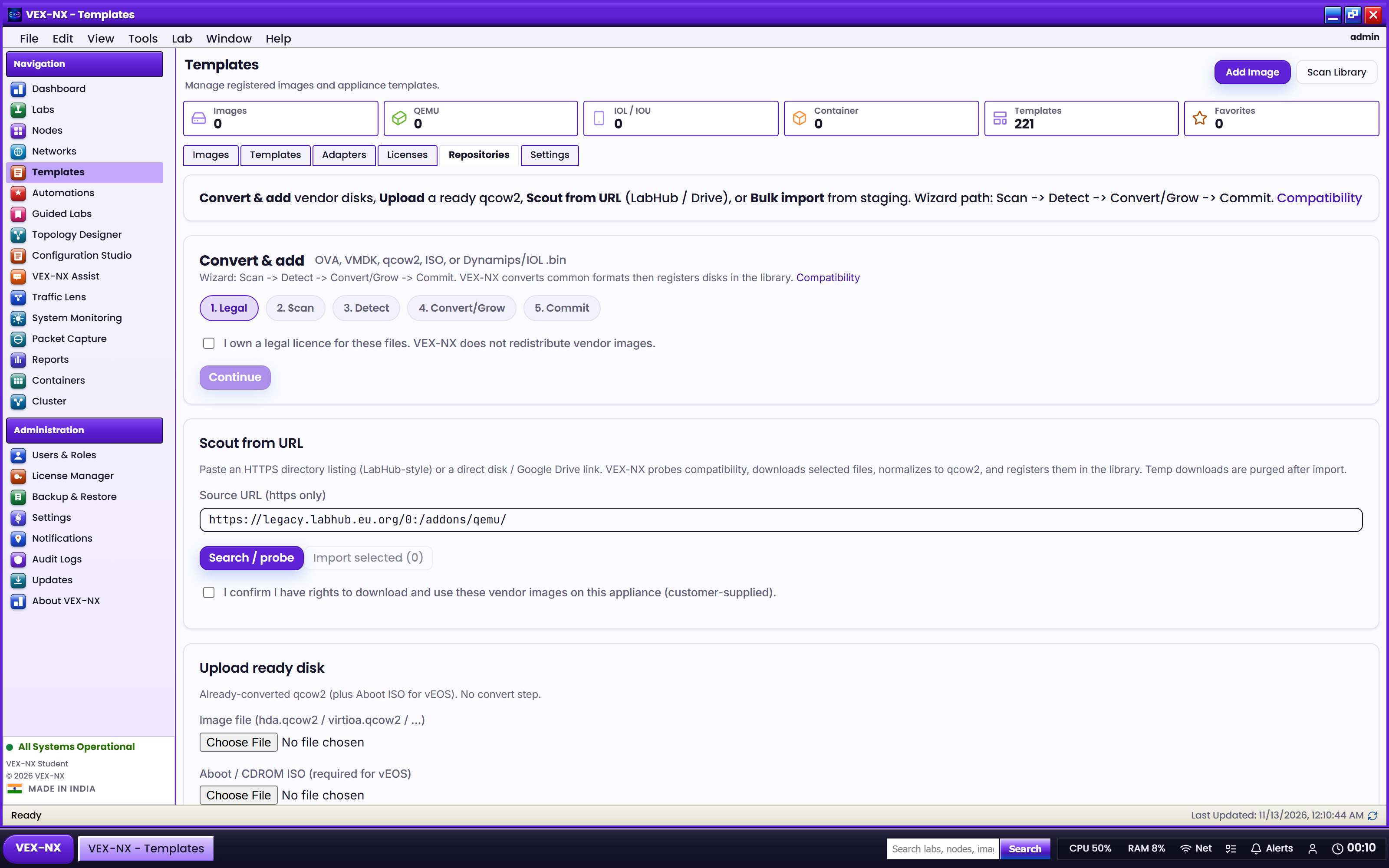
Three paths on Images -> Import
| Path | Why use it | Example |
|---|---|---|
| Convert & add | OVA / VMDK / qcow2 / ISO with progress | Drop a vendor OVA, pick template, convert |
| Upload ready disk | Already hda.qcow2 / virtio - no convert | Fast path if you prepared elsewhere |
| Bulk import | SCP many folders to staging, scan, import/convert what fits | Lab full of appliance folders |
Recipe: Convert & add (GUI upload)
- Images -> Import
- Use Convert & add
- Upload the disk (keep the browser tab open for large files)
- Choose the matching template
- Confirm conversion / copy into Library
- Start a node and select the new disk when asked
Recipe: Upload ready disk
- Images -> Import -> Upload ready disk
- Select the template (required so files map to the right product)
- Choose
hda.qcow2/virtioa.qcow2(and extras the form asks for) - Upload
Arista vEOS needs cdrom.iso (Aboot) as well as hda.qcow2 - pick both, or use Convert & add / Bulk.
Recipe: Bulk / folder import
- Stage files under the appliance staging path (SSH as vexnx), or follow Bulk folder import
- Scan -> confirm template match
- Confirm import into Library (or Convert selected when prepare is needed)
Expected result
- Disk appears in Library under the template
- Compatibility still shows the template status (Certified / Verified / Experimental) - importing a disk does not change that chip
If it fails
| Symptom | Fix |
|---|---|
| Bad Gateway / timeout | Free disk; smaller chunks; stay on the page |
| Permission denied on staging | SSH as vexnx; staging dirs mode 0777; restart API if needed |
| Wrong template | Re-import with correct ID (Supported images) |
| Disk full during convert | Free Library space or grow the appliance disk |
Related
- Bulk folder import
- Catalog and Compatibility
- Library
- Migrate Lab (topology ZIP still needs disks here)